 Sellissimo
Configure dashboard widgets and staff access
Give each team its order, stock and sales dashboard, with access limited to its sites and responsibilities.
Browse guides
On this page
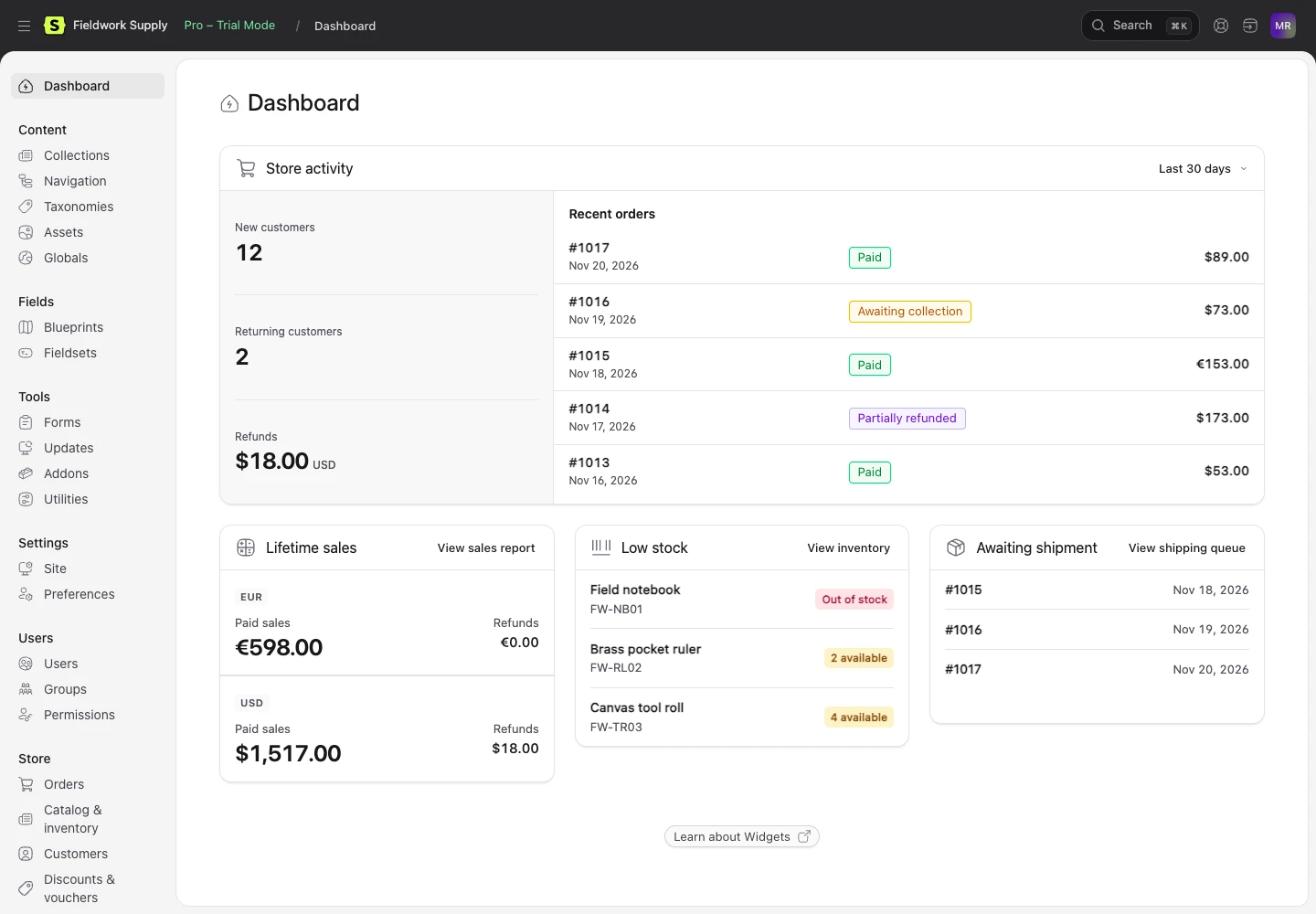
Choose the widgets#
Store activity appears by default when a staff member has access to orders or sales. Use the period menu for 7, 30 or 90 days. Order staff see up to five recent orders with payment status and amount. Sales staff see new and returning customers and settled refunds by currency. The selected site controls the results. A customer who purchased before the period and buys again in the period counts as returning.
Add optional widgets to widgets in config/statamic/cp.php. Set the width as a percentage of the dashboard. Store activity accepts days for its initial period. Set activity_widget to false in config/sellissimo.php to disable its automatic registration.
['type' => 'sellissimo_activity', 'days' => 7, 'width' => 100],
['type' => 'sellissimo_sales', 'width' => 33],
['type' => 'sellissimo_low_stock', 'threshold' => 5, 'width' => 33],
['type' => 'sellissimo_awaiting_shipment', 'width' => 33],
- Lifetime sales shows captured sales, including purchases later refunded, and settled refunds grouped by their original currency across accessible sites.
- Low stock shows up to eight tracked SKUs on the selected site, lowest availability first, including products without an opening count. The settings threshold applies unless the widget supplies its own.
- Awaiting shipment lists up to eight physical orders still needing dispatch, oldest first. Open the order or the shipping queue from the card.
Grant staff access#
Assign Statamic site access and the Sellissimo permissions needed for the role. Manage Sellissimo store grants the separate Sellissimo abilities. Restricted teams can instead receive specific permissions. The same site boundaries apply to search, order detail, exports and widgets.
- Configure the store —
manage sellissimo settings. - Configure store payment methods —
manage sellissimo payment settings. - Manage payment account credentials —
manage sellissimo payment credentials. - Manage gift vouchers —
manage sellissimo vouchers. - Correct guest order emails —
correct sellissimo guest contacts. - Edit staff-only order fields —
edit sellissimo order fields. - View return requests —
view sellissimo returns. - View orders —
view sellissimo orders. - Support customers and manage downloads —
support sellissimo orders. - Ship orders and receive returns —
fulfill sellissimo orders. - Issue refunds —
refund sellissimo orders. - Record or cancel pay-on-delivery orders —
collect sellissimo payments. - Export order data —
export sellissimo orders. - Manage draft orders —
manage sellissimo drafts. - Amend paid orders and settle balances —
amend sellissimo orders. - Manage outgoing webhooks —
manage sellissimo webhooks. - Manage inventory —
manage sellissimo inventory. - Manage shipping zones and rates —
manage sellissimo shipping. - Import products and variants —
import sellissimo products. - Manage customer address books —
manage sellissimo customers. - Manage discounts —
manage sellissimo discounts. - Manage taxes —
manage sellissimo taxes. - View sales reports —
view sellissimo sales.
Staff who fulfill or refund orders can see return requests. Order support, dispatch, refunds, collection, amendments, guest contact correction, staff-field edits, drafts and exports include access to view relevant orders. Shared credentials, shipping zones and outgoing webhooks require the applicable permission and storewide scope. Entry editing and access to product collections still use Statamic’s content permissions.
Find an order or discount#
Use the Statamic Control Panel search to open a Sellissimo order by order number or a discount by code. The results carry an Order or Discount badge. The Store navigation groups the authorized areas under Orders, Catalog & inventory, Customers, Discounts & vouchers, Sales reports and Settings. Use saved views and role default columns for recurring queues.