 Sellissimo
Documentation/Run a store
Ship an order
Dispatch all or part of a physical order and put the tracking reference on the receipt.
Prepare the parcel#
Open Store → Orders → Awaiting shipment and select the order. Check the delivery recipient, instructions, purchased quantities, and any existing parcels. Open the packing slip to prepare the physical lines.
Before the first dispatch, Correct delivery address can update the destination for fulfillment. Void an open carrier label first. The activity log records the correction and flags changes that need pricing or tax review.
Record shipment#
- Choose Ship a parcel. Enter each quantity in this shipment, using zero for items going later.
- Enter the tracking number. Select Email tracking to customer if the buyer should receive the update.
- Choose Ship parcel. Check the parcel, quantities, and tracking on the order. A partial shipment stays in the queue until the remaining units ship.
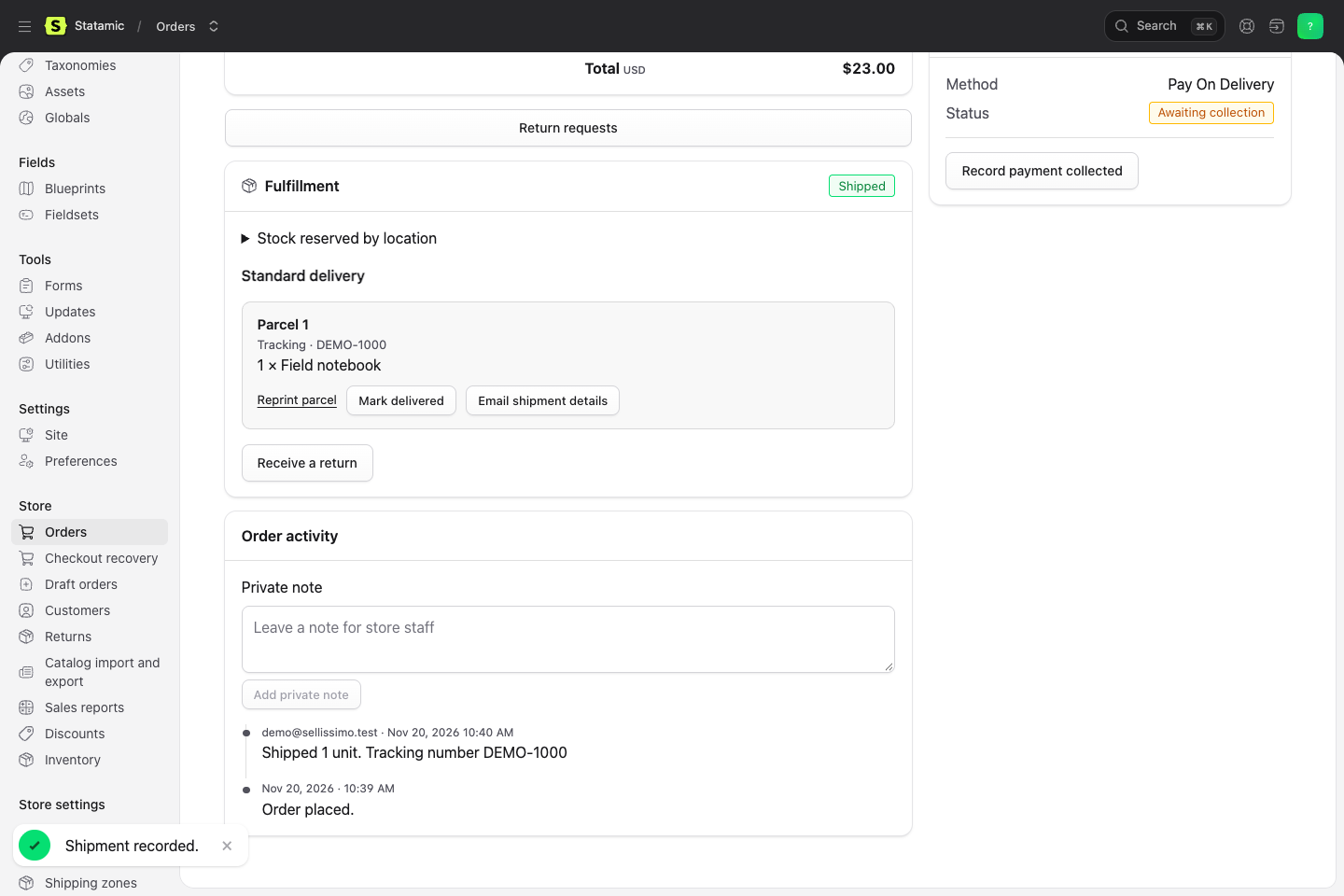
The buyer can find tracking on the receipt. If email was requested and delivery failed, the scheduler retries it. When a parcel arrives, use Mark delivered as appropriate for the store's return window.